
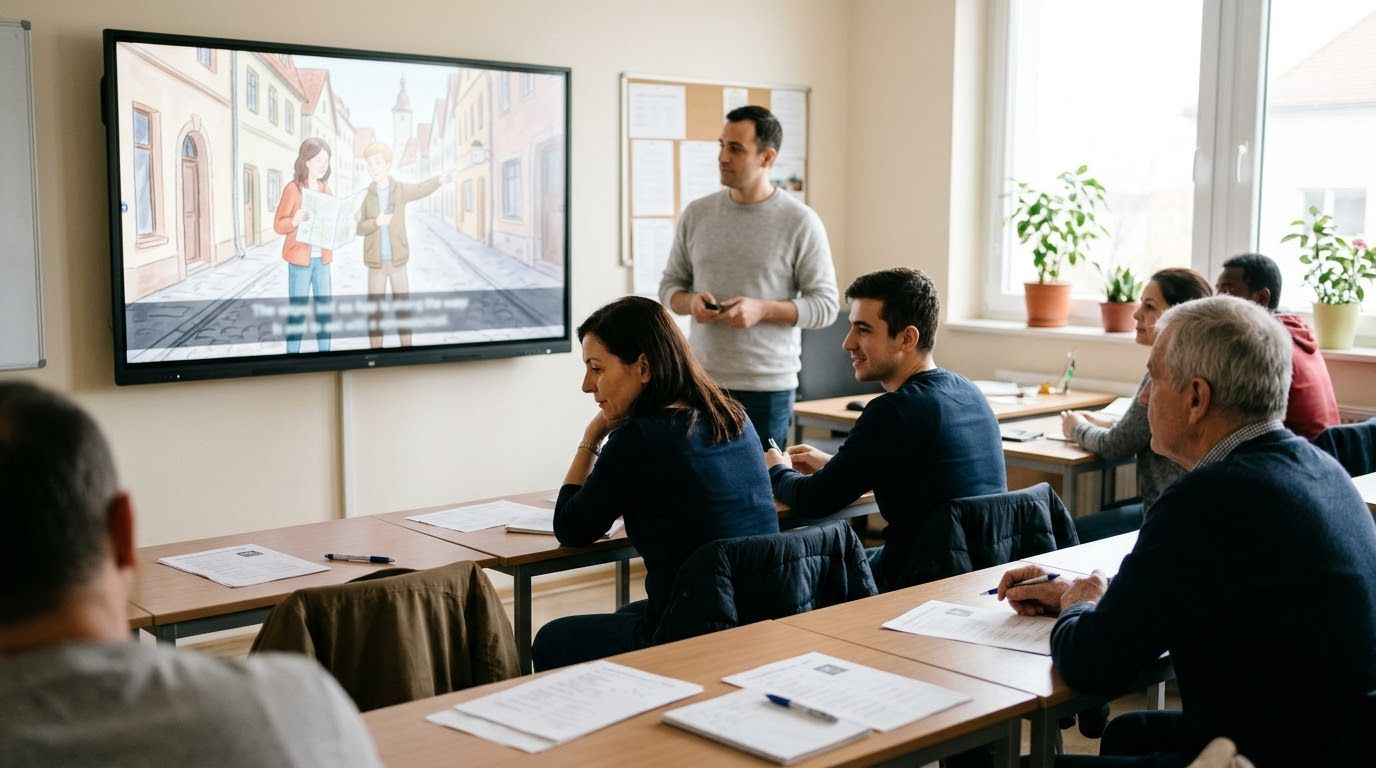
Make video is a button in Kukarella that turns a dialogue you have already written and voiced into a short video. Each speaker keeps the voice you gave them. The video shows a new picture roughly every seven seconds, drawn for what is being said at that moment, adds captions that light up word by word, and from 0:20 on puts in one short moving scene for each minute. You get an MP4 file and a link to share. It is made for people who teach or train: a language teacher with a listening dialogue, a trainer with a role-play, a course author with a narrated lesson.
But it is not an animated film. Nobody's lips move: the voices tell the story over the pictures. A video takes up to 10 minutes of voice. And it is paid for in visuals, Kukarella's credits for pictures and video, except for one free video of up to 45 seconds on a free account.
We released Make video on 16 November 2026. We built it because our users kept asking for it, and I explain below why. This guide says what it does, who it is for, what it costs, and when another tool is the better choice.
Make video in one minute:
- Write a dialogue in DialoguesAI (or a voiceover in Text to Voice), yourself or with the AI assistant.
- Voice every line. The video is cut to your voices and keeps your pauses.
- Open Create Visuals, choose a Look and a Shape, and press Make video. You see the price before you press.
- Wait (about seven minutes for a one-minute dialogue), then download the MP4 or copy a share link.
Above: a listening dialogue I voiced in DialoguesAI and turned into a video in the Drawn Look. The pictures change with the lines; the voices are the ones the dialogue was voiced with.
What problem does it solve?
Short answer: a voiced dialogue gives the listener nothing to look at, and making a video for it by hand takes hours. Make video closes that gap in minutes. But pictures help only when they show what is said, and the research on video in listening is mixed.
Learners lose the thread. A recorded dialogue asks learners to follow two or three strangers with no faces, no place and no gestures. Teachers fill the gap with a picture on the board or a photo on the worksheet. Often that picture shows the setting, not the moment.
Users asked for this, unprompted. In a survey on our site in spring 2025, 86 people told us in their own words what we should improve. Eleven of them, about one in eight, asked us to let them see the dialogue, not only hear it. One asked us to add video made from dialogues; another simply asked us to visualise them. Of the five answers we quoted in our own analysis, three came from teachers.
On a call in October 2026, a business English teacher told me that images help her learners while they listen, and that seeing a mouth move helps even more. She wished for characters whose mouths move, even a talking cat. Make video does not do that: it draws the moment, not the mouth.
Making it by hand is slow. With an ordinary video editor, you find or draw a picture for every few lines, place each one under its words, add captions and export. Matt Pierce of TechSmith, which makes screen-recording and video software, put the cost of even a change to a training video plainly: "it's going to take at least an hour unless it's really minor" (TechSmith, 2026). The dialogue itself is no longer the hard part. As Brent Warner wrote on the TESOL blog, access to voices that speak English in different ways "has always been either too much work or unobtainable", and AI voice generators can now do it for us (TESOL, 2024). The picture track is what is left.
What the research says about pictures and listening
Words with pictures usually beat words alone. Richard Mayer, who has studied multimedia learning for decades, reports that in 11 experiments in his lab, people who got words and pictures together did much better on later problem-solving tests than people who got the words alone: a median effect size of 1.39, which is large (Mayer, 2014).
In language listening, video often helps, but not always. Elvis Wagner gave the same listening test to two groups of ESL learners, one with video and one with audio only. The video group scored 6.5% higher (Wagner, 2010). But Aaron Batty, testing 164 university students of English in Japan on the same items as audio and as video, found that only four items worked differently as video, and no difference by type of text or by the learners' level (Batty, 2015).
What the picture shows matters most. In a study of the TOEFL listening section, April Ginther found that pictures helped when they carried the content of what was said, and did not help when they only showed the setting (Ginther, 2002). Pictures that are merely decorative can even hurt: in Mayer's review, lessons stripped of interesting but irrelevant pictures and words did much better than lessons that kept them (Mayer, 2014).
Captions help second-language listeners. A review of the research by Maribel Montero Pérez and colleagues found that captions have a large effect on how much learners understand and on the words they pick up (Montero Pérez et al., 2013).
This is why Make video draws a picture for each moment of the dialogue, not one picture of the place, and why its captions can be switched off: a teacher may want the first listening without text and the second with it.
Who is it for?
Short answer: anyone who has a dialogue or a voiceover and wants people to watch it, not only hear it. But if you need a presenter's face, moving mouths or your company's video templates, choose another tool (see below).
A language teacher
- What you have: a listening dialogue at your learners' level, voiced in DialoguesAI with the accents they need.
- What Make video adds: a picture for each moment, captions you can switch off, 16:9 for the classroom screen or 9:16 for learners' phones.
- The "but": a picture can show a detail differently from the script. Watch the video before your class does.
A trainer in a company
- What you have: a role-play: a customer complaint, a safety talk, a difficult conversation with an employee.
- What Make video adds: the scene acted out in pictures with the people in the dialogue, a short MP4 you can put in a course or a team chat.
- The "but": there is no SCORM export and no quiz inside the video. Put the MP4 into your own course tool.
A course author or a narrator
- What you have: a narrated lesson or a story, voiced in Text to Voice.
- What Make video adds: pictures that follow the narration, so a lesson or a story for your channel is ready without an editor.
- The "but": a video stops at 10 minutes. A longer narration is made from its first 10 minutes, so split it into parts.
Who should not use it: anyone who needs a real person on screen, a talking avatar that looks into the camera, lips that move with the words, or exact brand colours on every frame.
What does Make video do, step by step?
Short answer: three steps in one window, a wait of a few minutes to most of an hour, and an MP4 at full HD. But every line must be voiced first, and once you press the button the video is made to the end.
Above: my own walk-through, the same video that opens from Watch how it works inside the window.
Every screen in order, with one real dialogue. For the whole path from the first line to the MP4, what to check and how to use the video in a lesson, read How to Turn a Script Into a Video for Class.
Where it is. In DialoguesAI and Text to Voice, the toolbar has a button called Create Visuals. It opens a window with four tabs: Video, Picture, Clip and Your visuals. Make video is the Video tab.
Step 1, write. If the project is empty, the window offers Write it with the AI assistant or Write it myself. Both take you back to the editor. You can write the dialogue yourself, or ask the assistant for one from a topic or a file.
Step 2, voice. Every line needs a voice. The window counts the lines that have none and can voice them for you with Voice N lines. The video follows your voices and your pauses, so if you want a beat of silence between two lines, put it in the dialogue.
Step 3, choose how it looks. Nothing is drawn yet. You choose:
- Look, the style of every picture: Photo-real (the default), Drawn, Storybook, 3D cartoon or Talking animals, where every speaker becomes a different animal.
- Shape: Vertical 9:16 (the default) or Horizontal 16:9.
- Captions: on or off.
- End card: a short closing card with the video's title and a line about it.
 One moment of a dialogue in the five Looks of Make video.
One moment of a dialogue, a traveller asking the way, in the five Looks. Top row: Photo-real, Drawn, Storybook. Bottom row: 3D cartoon, Talking animals.
The window then shows a line of facts, for example 1:12 · 9 pictures · 1 moving scene · about 7 minutes to make for a minute of voice, and the price beside the Make video button.
While it is made. The window shows five stages: reading the dialogue and the timing of each line, writing the storyboard, drawing the pictures, making the moving scenes, and putting it together with your voices and captions. Pictures appear as they are drawn. You can close the window: the editor tells you when the video is ready, and it waits in Your visuals.
What you get:
- An MP4 file at 1920 × 1080 or 1080 × 1920, named after your project, with your own voiced lines as the sound. In videos over a minute, a few six-second scenes with only the sound of the place are put between lines.
- Captions burnt into the picture: the whole sentence, the word being spoken lit up in yellow, and the speaker's name above it.
- Pictures that move gently, a slow zoom or pan, and from 0:20 on, six-second moving scenes, one for each minute.
- A share link to a public page where anyone with the link can watch and download it. The page shows no price and no project.
How the pictures are chosen. A storyboard is written from your lines first. It splits the dialogue into groups of neighbouring lines, one picture for each group, about one every seven seconds and never fewer than four. Each picture shows one place, one moment and one action, and only under the lines it was drawn for. The characters keep their look from the first picture to the last. The storyboard asks for no text, number or speech bubble inside a picture and nothing unsuitable for a classroom, though a shop sign can still slip in.
Above: a second example, in French, in the Photo-real Look and the 9:16 shape for phones, with four speakers. Look at the boy: the picture makes him younger than his voice. That is the kind of slip to check before a class sees it.
What does it cost, and how long does it take?
Short answer: a one-minute dialogue costs about 38 visuals and takes about seven minutes to make. But after the one free video, Make video needs a paid plan.
The price is counted before you press. A video costs 2 visuals for each picture and 20 for each moving scene. The counts come from the length of your voiced dialogue, so the window knows the price before anything is drawn:
| Voiced length | Pictures and moving scenes | Visuals |
| 0:45 | 7 pictures, 1 moving scene | 34 |
| 1:00 | 9 pictures, 1 moving scene | 38 |
| 2:00 | 18 pictures, 2 moving scenes | 76 |
| 10:00 | 86 pictures, 10 moving scenes | 372 |
Type the voiced length of your own dialogue to see its numbers:
Visuals come with a paid plan, and you can top them up. Paid plans include visuals every month (the pricing page calls them AI Art & Video Credits). If you run short, the window says how many more you need; top-ups start at 100 visuals for $12. At that rate, a one-minute video costs about $4.60.
You pay only for a video that is made. The price is held when you press Make video and charged when the video is ready. If it fails, the visuals go back. A picture that fails twice can be redrawn with Try again at no extra cost. Switching the captions or the end card on or off after a video is made is free, because no new picture is drawn. But it changes that same video: download the first version before you switch.
But changing the Look or the Shape is a new video. Change settings makes a new video with your new choices and charges again. There is no button to redraw one picture you do not like in a finished video.
Over 3 minutes, it asks first. For a long dialogue, the window shows the length, the number of pictures and moving scenes and the time it will take, and asks you to check the cost.
The free video. Every free account can make one video of up to 45 seconds of voice. A longer dialogue is cut after the last whole line that fits. If you signed up with an email and a password, you confirm the email first; a Google sign-in needs nothing. Every frame of a free video carries a small Made with Kukarella.com mark, and it ends with a card that says so. On a paid plan the mark goes, and you may switch the end card off.
How long it takes. For a one-minute dialogue, the window estimates about seven minutes; a 10-minute narration takes about three quarters of an hour. Most of the wait is the moving scenes.
What can't it do yet?
Short answer: no moving lips, no single-picture redraws, no videos over 10 minutes. But each of these is a choice you can work around.
- Nobody's lips move. The moving scenes show gentle movement: someone turns, walks, picks something up. Nobody speaks on screen. If your learners need to read lips or watch a face, this is the wrong tool.
- A picture can be a little off. The storyboard reads your lines, and sometimes draws a detail differently from what you meant. Watch every video before you use it.
- Up to 10 minutes of voice. A longer dialogue is made from its first 10 minutes. Split it in the editor to make the rest.
- One video is made at a time in a project. Start the next when it is ready.
- Captions in some scripts are not ready. Captions work for languages written in Latin, Cyrillic or Greek letters, Chinese, Japanese, Korean, and Devanagari (Hindi, Marathi, Nepali). Other scripts, such as Arabic, Hebrew, Thai, Bengali and Tamil, are not ready yet.
- No editing inside the video. You cannot move a picture, change one caption or add music in the window. Download the MP4 and edit it elsewhere if you need to.
Make video or another tool?
Short answer: choose by what your learners need to see. Several tools animate a script with talking characters or avatars. We found none that takes a dialogue you have already voiced and draws a picture for each moment of it, the way Make video does. But if a face or moving lips matter, another tool is the better choice.
Prices below were read on each tool's pricing page on 19 November 2026, in US dollars a month.
Talking avatars: Synthesia, HeyGen
- What you get: a realistic presenter, or two or more avatars facing each other, whose lips move with the words.
- Best for: a presenter who explains, a role-play where faces matter.
- Price: Synthesia from $19 a month, with two avatars in one scene on its higher plans (free: 10 minutes a month with a watermark); HeyGen from $29 a month (free: three one-minute videos a month) (Synthesia, HeyGen).
- But: the picture is a face, not the place or the moment the dialogue is about.
Animated characters: Vyond, Atlabs
- What you get: cartoon characters who act out a scene and move their mouths to the voices.
- Best for: a workplace scenario with gestures and lip-sync.
- Price: Vyond from $99 a month, or $58 a month paid yearly; Atlabs from $19 a month, with lip-sync from $39 (Vyond, Atlabs).
- But: you rebuild the dialogue scene by scene in their tool (you can bring your own recording), and Vyond's scenes are built by hand.
Script to slideshow: Pictory, Fliki, Lumen5
- What you get: a scene for each sentence of a script, from stock footage or AI pictures, with AI voices you can change scene by scene.
- Best for: an explainer or a social post.
- But: you rebuild the dialogue in their tool, line by line; they are made for an explainer more than for a listening dialogue.
Make video
- What you get: your own voiced dialogue, a picture drawn for each moment in one of five Looks, captions for learners, an MP4 and a share link.
- Best for: a listening dialogue, a role-play or a narrated lesson you have already voiced.
- Price: one free video up to 0:45; then 2 visuals a picture and 20 a moving scene, about 38 for a one-minute dialogue.
- But: no moving lips, no avatar, no templates, 10 minutes at most.
How to use it in a lesson
Short answer: play it twice, the first time with less help than the second. But no picture replaces the work of listening, so keep the tasks.
- Before playing, show one picture and ask what the people might be saying.
- First play, captions off: a gist question. Download the video with captions, then switch captions off (free: the video is put together again in a few minutes) and download that one too.
- Second play, captions on: detail questions, then the script.
- Phones: send the 9:16 version as a link for homework; the share page needs no account.
- Role-plays: pause on a picture and ask learners to say the next line before they hear it.